Ping Test - Network Troubleshooting
Learn how to start the troubleshooting process for Quality of Service (QoS) issues by using a Ping Test to narrow down where the issue may lie.

Written by Adrian Angwenyi
Updated at December 26th, 2025
Table of Contents
What is a Ping Test?
One of the simplest ways to check the general quality of your internet is to run a ping test.
A ping test is fairly simple to do. You can instruct your device to send a “ping” to another device by using packets. The recipient device then sends a “ping”, or packet, back to the sending device. As the computer is tracking this communication, the time it takes to get a response is recorded in milliseconds (for Windows users) or seconds (for Mac users).
Another great way to check the health of a network is to run a speed test that also displays ping results.
Run a Ping Test from a Computer
To run a ping test from a computer, open up the Command Prompt (Windows) or Terminal (Mac) programs of your PC.
Note: While the Windows and Mac versions are accessed and used differently, they are both able to run this same ping test.
For Windows PC Users
On a Windows PC, you can use the Run menu to quickly open and run programs on your PC, such as Command Prompt. To open the Run menu, press Windows key ( or
or  ) + R.
In the Run menu, search for “cmd” and press Enter.

To perform a ping test to our Stratus server, enter the command “ping -l 250 stratusp.spectrumvoip.com” and press Enter.
Fun Fact: The syntax for a Windows ping command is ping [options] <target>.
For this ping command, we are pinging Stratus with packets that are 250 bytes to help simulate a VoIP call. By default, the ping test will send 4 pings.
The different options you can use for a ping test include:
• -t: Sends ping requests until interrupted by pressing Ctrl+C.
• -n <count>: Sets the number of echo requests to send (default is 4).
• -l <size>: Sets the size of the packet in bytes (default is 32, maximum is 65,500).
• -w <timeout>: Sets the timeout in milliseconds to wait for a reply (default is 4000 ms).
The <target> portion of the command is a website's URL or an IP address. A common example used for testing is google.com (Google's URL) or 8.8.8.8 (Google's DNS Server Address).
For the example above, we are pinging the Stratus server (stratusp.spectrumvoip.com)
You should see a response showing that our server is being pinged.
During the ping test, you should see the following in the responses to show the connection is healthy for VoIP calls:
• 4 responses showing as received with 0 lost (0% loss). 
• Response times showing as under 30ms. 
Note: If you are seeing ping response times that are longer, users and callers may start to experience audio issues affecting their calling experience.
If your ping test is showing responses that say, “Request timed out”, the following could be happening:
• There is heavy congestion on your internet network causing packets to drop.
• Your internet connection is down due to equipment issues or an outage.
• The host of the destination URL or IP address may be down due to network or server issues.
• Your network's firewall is blocking traffic to/from the destination URL or IP address.
For Mac PC Users
For Mac PCs, you can use the PC's Terminal to run ping tests, or you can use its Network Utility program.
Use Network Utility
As an alternative to using Terminal, you can open MacOS' Network Utility program to perform a ping test to a URL or IP address.
1. Open Spotlight by clicking its magnifying glass icon and search for “network utility”.
2. In the Network Utility menu, click the Ping tab.
3. In the Network Address box, type stratusp.spectrumvoip.com.
4. Click the Ping button. 
You should see a response showing that our server is being pinged.
During the ping test, you should see the following in the responses to show the connection is healthy for VoIP calls:
• Responses showing as received with 0 lost (0% loss). 
• Response times showing as under 30ms. 
Note: If you are seeing ping response times that are longer, users and callers may start to experience audio issues affecting their calling experience.
If your ping test is showing responses that say, “Request timeout”, the following could be happening:
• There is heavy congestion on your internet network causing packets to drop.
• Your internet connection is down due to equipment issues or an outage.
• The host of the destination URL or IP address may be down due to network or server issues.
• Your network's firewall is blocking traffic to/from the destination URL or IP address.
Use the Terminal
To pull up the Terminal window on a Mac PC, press the Command key (⌘) + Space.
In the Terminal window, enter the command “ping -s 250 stratusp.spectrumvoip.com”.
Fun Fact: The syntax for a Mac ping command is ping [options] <target>.
For this ping command, we are pinging Stratus with packets that are 250 bytes to help simulate a VoIP call.
The different options you can use for a ping test include:
• -c <count>: Sets the number of echo requests to send.
• -s <size>: Sets the size of the packet in bytes (default is 32, maximum is 65,500).
• -t <timeout>: Sets the timeout in seconds to wait for a reply.
• -i <interval>: Sets how long to wait (in seconds) between pings.
You should see a response showing that our server is being pinged. Press Ctrl + C to stop the ping test.
During the ping test, you should see the following in the responses to show the connection is healthy for VoIP calls:
• Responses showing as received with 0 lost (0% loss). 
• Response times showing as under 30ms. 
Note: If you are seeing ping response times that are longer, users and callers may start to experience audio issues affecting their calling experience.
If your ping test is showing responses that say, “Request timeout”, the following could be happening:
• There is heavy congestion on your internet network causing packets to drop.
• Your internet connection is down due to equipment issues or an outage.
• The host of the destination URL or IP address may be down due to network or server issues.
• Your network's firewall is blocking traffic to/from the destination URL or IP address.
Ping Target Examples for Troubleshooting
| Example Target | Example Ping Command | Purpose |
|---|---|---|
| Local Device | ping <IP address of device> | Test a local device's connectivity. |
| Gateway | ping <your gateway (WAN) IP> | Check if your gateway device is down or experiencing connection issues. |
| Specific Target | ping <target URL or IP address> | Check for a connection to an external destination and see if there is any latency. |
| External IP to a Service Provider | ping 8.8.8.8 | If a ping test to a specific target fails or times out, ping the IP address of a different provider to check if the other destination is the source of issues. If two ping tests to different destinations time out, then there may be issues with your own network. |
| External Hostname | ping google.com | Check for any DNS resolution issues by pinging a hostname to see if your equipment can translate it correctly. |
Acceptable Ping Values for VoIP
While each case will be unique, there are some ballpark numbers that are good to shoot for.
According to Cisco, “One-way (mouth-to-ear) transmit delay should not exceed 150 ms (per G.114 [protocol] recommendation).”
This would make the round-trip delay be about 300ms. A delay of this magnitude is detectable by the human ear. 
Run a Speed Test
There are some speed test sites, such as SpeedTest.net or even Google that will let you run a Speed Test for your internet connection. They usually not only tell you your Maximum Upload and Download thresholds (how much speed you are paying for by your Internet Service Provider), but they often also tell you your ping speeds for the tests that they run.
Speed Tests with Ping
Instead of using a website that only tests for download and upload speeds, you can use websites that test for speed and ping. Knowing the ping along with your measured speeds can be helpful information to share with a technician while troubleshooting.
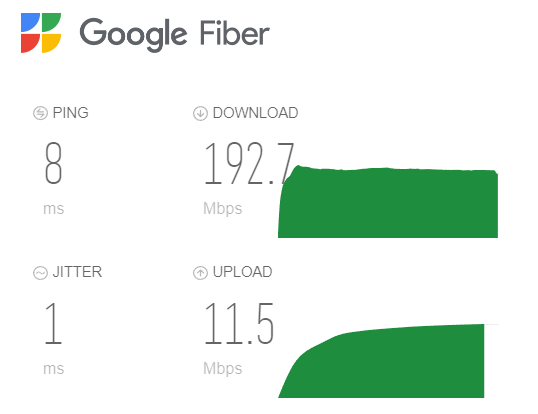
Sites like www.fiber.google.com/speedtest/ and www.speedtest.net can test in this way.
✔ A healthy network with a router configured according to our recommended router settings will have results that look similar to these examples below.
Google Fiber's speed test results:
SpeedTest.net's results:
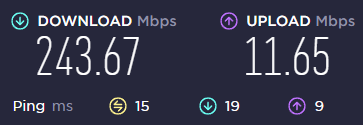
Quick Tip: The results should show low ping and jitter with relatively consistent download and upload speeds.
Speed Tests with Other Measurements
In addition to websites that test speed and ping, there are sites that also display measurements for latency, packet loss, and jitter. Getting and recording these extra results can help a technician troubleshooting further diagnose where the issue is in the network.
Depending on the website you find for speed testing, there may be different or missing measurements.
• An example of a site that has limited results is Netflix's fast.com.
✔ Once Fast.com's speed test has been run, results may look similar to this when the More Info button is clicked: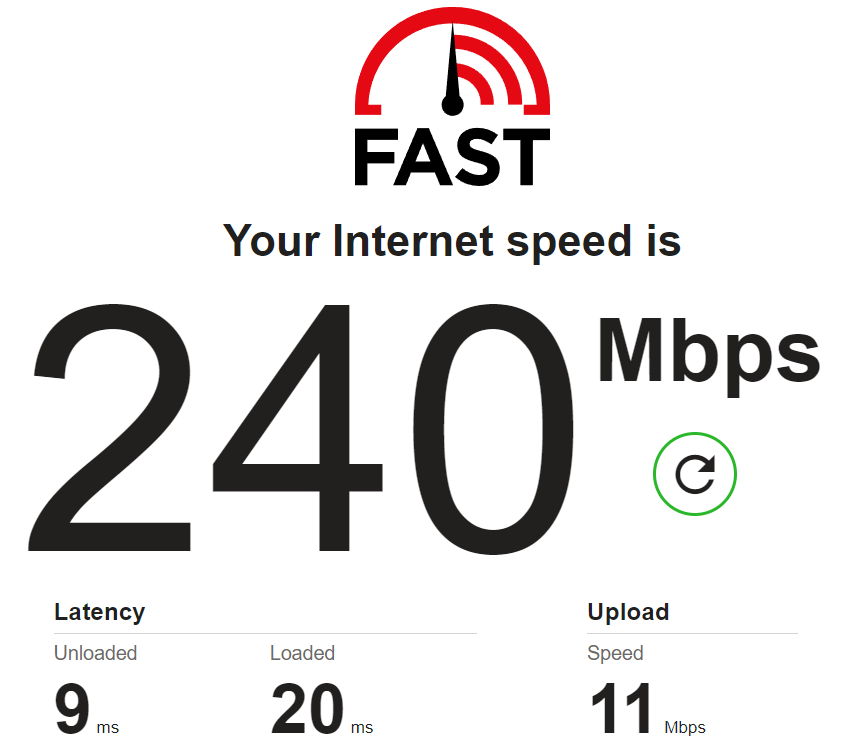
• One example of a site that tests for latency, packet loss, and jitter is www.speed.cloudflare.com.
✔ Using a speed test like Cloudflare, a healthy network with a router configured according to our recommended router settings will have results that look similar to this:
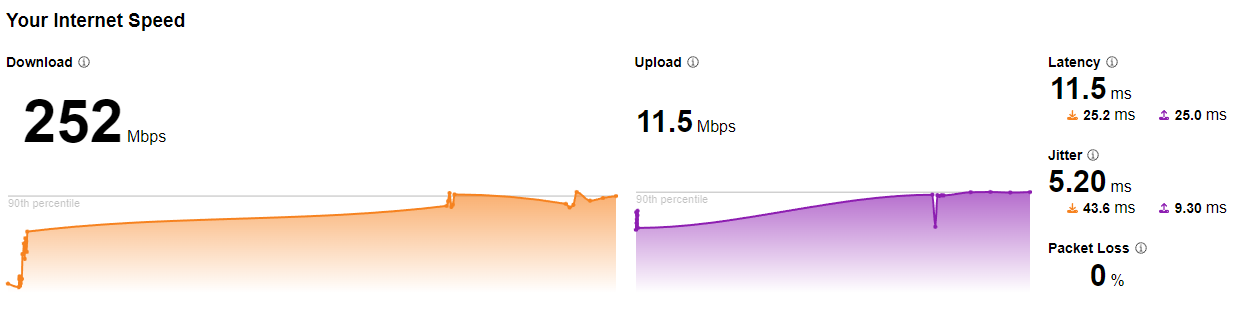
Quick Tip: The results should show relatively consistent download/upload speeds with low latency and jitter and no packet loss.
What Do I Do Now?
Responses Say “Request Timeout” or “Request Timed Out”
If your ping test is showing responses that say, “Request timeout”, the following could be happening:
- There is heavy congestion on your internet network causing packets to drop.
- Your internet connection is down due to equipment issues or an outage.
- The host of the destination URL or IP address may be down due to network or server issues.
- Your network's firewall is blocking traffic to/from the destination URL or IP address.
I See Packet Loss
The best plan of action is to reach out to your ISP (Internet Service Provider) to make sure they are aware of network quality so that they may run their own diagnostics and act accordingly.
If it's a small amount of packet loss (e.g., 1-2% packet loss), some ISPs may want to shrug it off because small amounts of packet loss do not affect “most” internet activities, such as watching YouTube videos or checking emails. For VoIP services, even the slightest amount of packet loss is noticeable since pieces of audio are being lost.
There are High Ping Times
Ping times can vary depending on the quality of the internet connection that the ISP is able to provide with the equipment currently in use. 
If the ping times are averaging above or near 150ms, your ISP or IT should be notified so that they can run diagnostics. They may need to upgrade outdated equipment or check for physical cabling issues.
Be sure to run ping tests to multiple hosts (e.g., google.com, stratusp.spectrumvoip.com, 1.1.1.1, 8.8.8.8) to make sure that the high ping times are not coming from only one host site.
There is a Wide Range of Ping Times
If the ping tests come back with inconsistent results, such as ranging from 5ms to 300ms ping times, it would be a good idea to reach out to your ISP (Internet Service Provider) to confirm that they are not seeing any issues on their end that could be causing the jitter.
It is also possible that this jitter can be caused by internal network congestion. If you have too many local network devices that are not routed and configured properly to prioritize your phones' SIP traffic, your local network may be congested and inconsistent.
Other
Check the network equipment to ensure each device is configured properly for VoIP services. To do so, reference our Recommended Router and Firewall Settings article with your Internet Service Provider or IT team.