Transfer Calls with the StratusHUB Desktop App
Learn how to easily transfer calls on the StratusHUB desktop app using the main active call menu and the Dashboard tool.

Written by Val Campos
Updated at September 8th, 2026
Table of Contents
Transfer Using the Active Call Menu
While handling a call, it may be necessary to pass the phone call along to a user, call queue, or an external phone number. This can be done through transferring.
There are three different types of transfer that can be utilized depending on how exactly the call needs to be transferred and handled:
- Blind Transfer - Transfer a call directly to another person without talking to that second person. This is sometimes referred to as a “cold”, “unassisted”, or "unattended" transfer.
- Assisted Transfer - Speak with the person being transferred to before completely transferring the call. This is sometimes referred to as a “warm” or “attended” transfer.
- Voicemail Transfer - Transfer a caller directly to a general mailbox or the voicemailbox of another user.
Use the module below to review how you can use these types of transfers on your StratusHUB desktop app:
Blind Transfer
A blind or a cold transfer allows you to transfer a call to another destination without establishing a conversation with this new call recipient. The first call is put on hold until the call is transferred successfully.
1. On an active call, click the Transfer call  button.
2. Select Blind Transfer. 
✔ Once you click Blind Transfer, the caller will be placed on hold automatically and the call will minimize. You will be taken to the Soft Phone page so that you can dial the number to transfer the call to.
If you need to return to the active call, click the Back to Call button at the top-right. 

While back on the call, you can click the Cancel Transfer button if you need to take the call out of transferring. 
3. On the Soft Phone tab, use the keypad to enter the extension number or phone number to transfer the call to.

4. Click the Call button to transfer the caller.
✔ Once the Call button is clicked, the person you dialed will ring. They would need to answer the call to accept the transfer and speak with first caller.
Assisted Transfer
An assisted transfer, also known as a warm transfer, allows you to call the destination you want to transfer to. This can be a great way to check and make sure that destination is ready to accept and handle a transferred call.
To make an assisted transfer:
1. On an active call, click the Transfer call button.
2. Select Assisted Transfer.
✔ Once you click Assisted Transfer, the caller will be placed on hold automatically and the call will minimize. You will be taken to the Soft Phone page so that you can dial the number to call and transfer the call to.
If you need to return to the active call, click the Back to Call button at the top-right.
While back on the call, you can click the Cancel Transfer button if you need to take the call out of transferring.
3. On the Soft Phone tab, use the keypad to enter the extension number or phone number to call and transfer the call to.
4. Click the Call button to call this person/company.
✔ Once the Call button is clicked, a second call will be started. The person you dialed will ring.

Quick Tip: If the person does not answer the call, you can click the Complete Transfer button to transfer the call anyways. 
If you need to cancel the second call and resume the first call, click the Cancel Transfer button.
5. Once the second person answers the call, speak with them as needed.
6. If you need to relay information between both callers, click the Swap call button to swap between each call. 
7. When the call is ready to be transferred, click the Complete Transfer button.
✔ Once the Complete Transfer button is clicked, both callers will be directly speaking with each other since an assisted transfer was used. The user receiving the transfer would not need to worry about having to answer a ringing call.
Voicemail Transfer
One of the dialable codes that can be used on the StratusHUB desktop app is 03. When 03 is dialed in front of an extension number, you can be directly taken to that extension number's voicemailbox.
For example… If a user needs to leave a voicemail for extension 100, they can dial 0-3-1-0-0 from their app to be taken directly to x100's mailbox. They can wait for the greeting to stop playing to leave a message.
If a user needs to check extension 100's mailbox for them, they can dial 0-3-1-0-0. Once they hear the mailbox's greeting, they can press star (*) to interrupt the greeting and enter x100's voicemail PIN when prompted.
The 03 code can be used to transfer an active call to a user's voicemailbox as well. To transfer a caller to a voicemailbox using the 03 code…
1. On an active call, click the Transfer call button. 
2. Click Blind Transfer.
✔ Once you click Blind Transfer, the caller will be placed on hold automatically and the call will minimize. You will be taken to the Soft Phone page so that you can dial the number to transfer the call to.
If you need to return to the active call, click the Back to Call button at the top-right.
While back on the call, you can click the Cancel Transfer button if you need to take the call out of transferring.
3. On the Soft Phone tab, use the keypad to enter 03 and the user's extension number

4. Click the Call button to transfer the caller to the mailbox.
✔ The caller will be transferred directly to the user's mailbox so that the user's phone does not ring. After the mailbox finishes reading its greeting, the caller can leave a voicemail.
Transfer with the Dashboard
The StratusHUB Dashboard tool can be used during an active call as well. This tool shows ongoing calls for your extension number, the park queues that can be used for parking calls, and a panel that lists your contacts, your company's call queues, and your company's auto attendants.
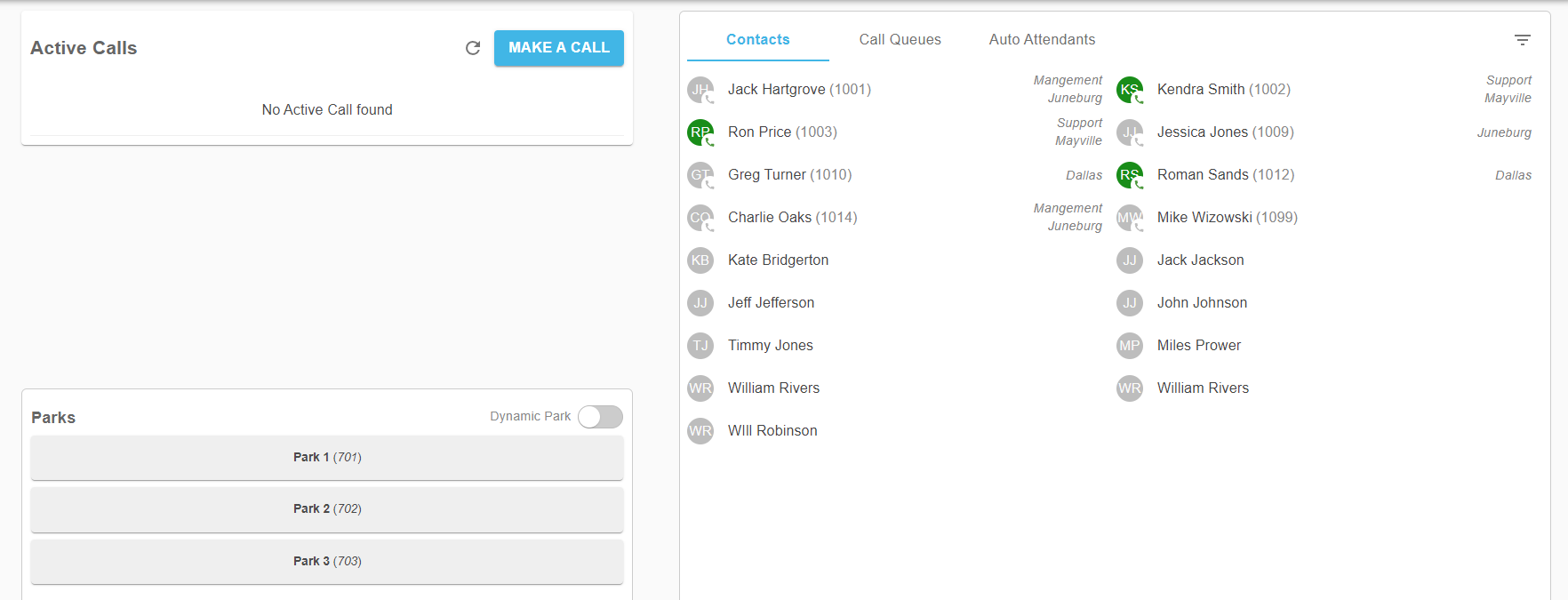
To view and use the Dashboard tool of the desktop app, click the Dashboard icon next to the app's status icons.

In the Dashboard tool, you can transfer calls with ease by dragging and dropping an active call onto a user's contact.
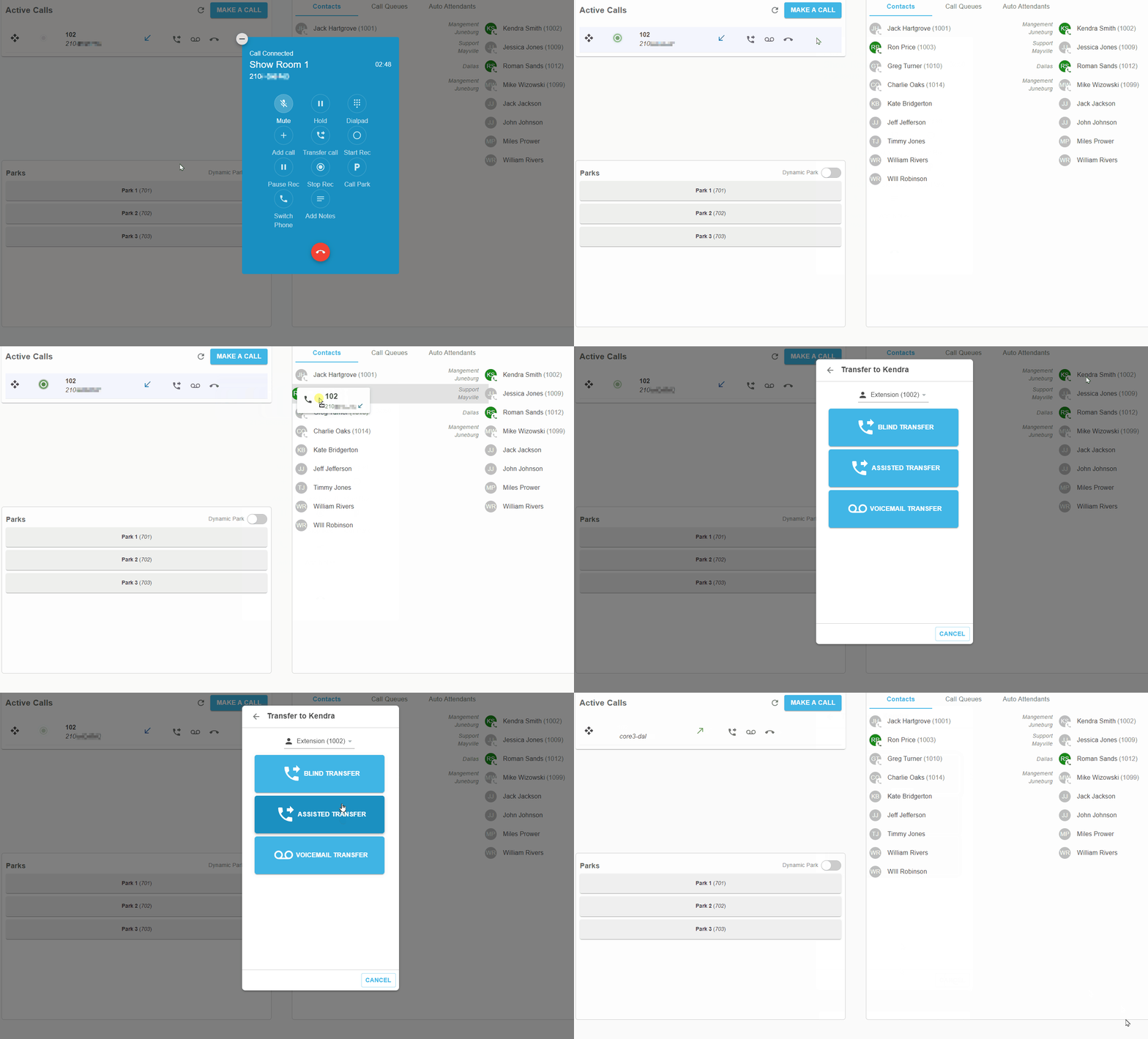
✔ When you drag and drop to transfer a call, you will have the option to either Blind Transfer, Assisted Transfer, or transfer the caller to that user's Voicemail.

Once the call completely transfers, you will see a notification saying the transfer was successful:

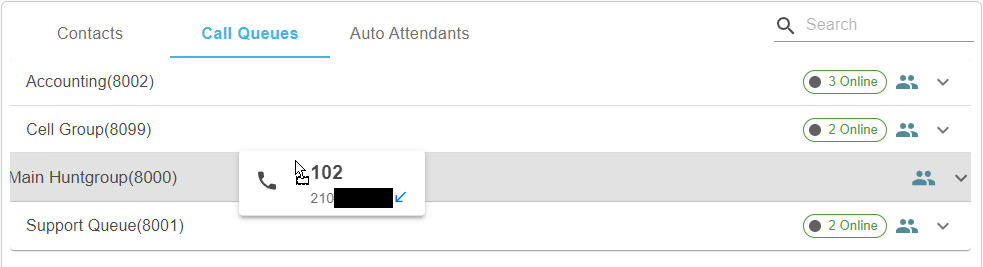
Calls can also be transferred to Call Queues and Auto Attendants using the Call Queues and Auto Attendants tabs in the right panel.