Create a Schedule for Users Receiving Iris Transfers
Explore how you can create a call routing schedule (using time frames and answering rules) for users that may receive transfers from Iris.

Written by Val Campos
Updated at June 2nd, 2026
Table of Contents
Similar to Inbound Routing Users, regular users have answering rules. Answering rules determine where calls should be forwarded when a user's extension number is dialed during specific times and dates.
If you want callers to be sent to someone's mailbox when Iris is prompted to transfer to that user by a caller, you can create a call routing schedule for them using answering rules.
Note: Callers can be transferred by Iris to a specific user in the following scenarios:
• Iris has a Call Transfer option for that user within its settings.
For example, Iris has a call transfer option for user 107 that is triggered when a caller asks for “Sales”.
• Iris has its Directory feature enabled.
For example, a caller asks for “Bob Smith” while talking with Iris, which has the Directory enabled.
To learn more about the settings listed above, review the dropdowns below:
Iris' Call Transfer Options
Some callers that interact with Iris may ask to speak with a specific department or person. You can set where calls should be forwarded when a specific person/department is mentioned.
1. In the Call transfers section of the Settings, click the Add transfer button to add a destination for transferred calls.
2. In the Add transfer menu, input the following:
• Extension - Type the name or extension number of the name, call queue, or auto attendant that would receive the transferred call.
• Name - Type a name for this transfer that Iris would listen for to transfer to this person/department.
3. Click the Save button.
4. Repeats steps 1-3 for each keyword and transfer that needs to be added.
5. To make sure the transfers work as you intended, click the Make a test call button at the top-right of the Settings menu and ask for these people/departments by name.
. 
Iris' Directory
Many auto attendants may use the Dial-by-Name Directory to allow callers to search for and contact a team member directly. This can also be done within Iris using its Directory feature.
If you would like to try out this feature, click the Enable directory tool toggle.

You can click the Make a test call button at the top-right of the Settings menu, to test the functionality of the Directory in an active call with Iris.
Hide Someone from the Directory
Some users may not need to be searchable by customers within Iris' directory. You can hide a user from the Directory feature by doing the following:
1. Navigate to the Users page.
2. Use the search bar to find the user that should be hidden.
3. Click the name of the user.
4. In the Profile section of the user's settings, go to the Directory Options and deselect Announce in Audio Directory. 
5. Scroll down and click the Save button. 
Some Users are Not Searchable by Iris
If you are noticing that a particular user is not able to be reached by a caller after they ask for that user by name to Iris, that user's “Announce in Audio Directory” setting may be disabled.
More Info: The “Announce in Audio Directory” setting allows a user to be searchable within audio directories.
These directories include the Dial-by-Name Directory that can be set as an option for an auto attendant and Iris' Directory.
If this setting needs to be adjusted for multiple users, you can bulk edit those users so that you do not have to update this setting for users one-by-one.
1. On the Users page, select the users that need this change.
2. Click the Bulk Edit button that appeared. 
3. In the Bulk User Edit menu, scroll down and select Announce in Audio Directory. Make sure its toggle is set to Yes. 
4. Click the Save button to confirm these changes. 
Step 1: Create an “Office Hours” Time Frame
To tell the system the day and times that the user should receive calls, you can create a time frame on the Time Frames page of the Stratus web portal.
- Navigate to the Time Frames page.

- Do one of the following:
- If the time frame you are creating will be used by multiple users, select Domain.

- If the time frame will only be used by a specific user, find and select the user using the list or search bar.

Note: If you are not able to see the user in the list, unselect Hide Users Without Time Frames.

- If the time frame you are creating will be used by multiple users, select Domain.
- Click the Add Time Frame button.

- In the Add a Time Frame menu, do the following:

- Name - Type a unique, identifiable name for the time frame.
- When - Select Days of the Week.
- On the Days of the Week tab, select the days and times the user(s) should receive calls.

Quick Tips: You can add a break/lunch period by clicking the Add
 icon.
icon.
If you need to apply a change you have made to the rest of the selected days, click Copy to all.

If you need this time frame to start being active on a future date, you can set a custom start date by using the Recurrence dropdown to select Custom. Using the Starts box, select the date.
If this schedule should happen at a different frequency (e.g., every 2 weeks, every other month, etc.) use the Recur Every options to select that frequency.

- Click the Save button.

- Repeat steps 3-6 for each additional time frame a user will need.
Step 2: Add an “Office Hours” Rule for the User
To set where calls should go for a user when their extension number is dialed outside of their work schedule, an answering rule will need to be created that uses their new "Office Hours" time frame.
- Navigate to the Users page.

- Scroll down or search for the user that needs their hours set.

- Click the Edit
 icon next to the user and select Answering Rules.
- Click the Add Rule button.

- In the Add an Answering Rule menu, use the Time Frame dropdown to select the user's new time frame.

- If this time frame should be ready to use immediately, leave Enabled selected.

- Do one of the following to set where calls should go depending on what the user prefers
To All Devices
If every device registered to a user's extension number should ring, select Simultaneous ring. Make sure that Ring all user's phones is selected.

Use the table below to learn more about the different options available for configuring Simultaneous Ring:
Option Description Include user’s extension Ring the phone that uses the user's main extension number. Ring all user’s phones Ring all of the user's phones (i.e., mobile apps, softphones, and desk phones) at the same time. Answer confirmation for offnet numbers Request that the person answering press 1 to accept the call to ensure that the answering party is a person instead of voicemail. Extension, number or phone Type the extension number or phone number of another device to ring. Ring Delay (sec) 
Set a how long (in seconds) the system should wait before calling the device set in the Extension, number or phone box. Add 
Click to add additional phones to the simring. To Their Desk Phone
If only the user's desk phone should ring, select Just ring user's extension.

To a Softphone
If the user only wants a specific softphone (e.g., StratusHUB, StratusWEB PHONE, or Stratus mobile app) to ring, you can use the Call Forwarding section to set the device the calls should route to. Select Always and type and select the extension of the device/softphone that should ring.

You can select other forwarding rules to fine-tune how a call should be handled when certain conditions are met.
For this example… Calls will be forwarded to x121's StratusHUB desktop app. When calls are rejected or unanswered, the call will be forwarded to x121's desk phone. Calls not answered on the desk phone will go to x121's voicemail.

Use the table below to learn more about these other call forwarding options:
Option Description On Active Forward calls to the destination if the user's phone is already on a call. When busy Forward calls to the destination if the reject button is pressed on an incoming call. When unanswered Forward calls to the number specified in the text field if the call is not answered after the specified ring timeout. When offline Automatically forward calls to the number specified in the text field when no devices are registered. This can be helpful if all of a user's devices are offline due to an internet or power outage. To a Different User
If the user's calls should be forwarded to a different extension number, you can use the Call Forwarding section to set this user's calls to forward to a different user's extension number or a telephone number.

Option Description Always Forward calls to the number specified in the text field. No other forward rules will be followed On Active forward calls to the destination if the user's phone is already on a call. When busy Forward calls to the destination if the reject button is pressed on an incoming call. When unanswered Forward calls to the number specified in the text field if the call is not answered after the specified ring timeout. When offline Automatically forward calls to the number specified in the text field when no devices are registered. This can be helpful if all of a user's devices are offline due to an internet or power outage. Destination Options for Forwarding
When the destination field is being filled with Text, Stratus will show possible destinations based on the input.
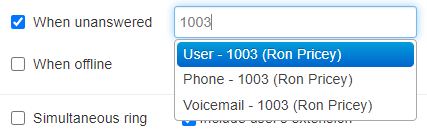
The different destination options that may appear for a name/extension number include the following:
• User - Forward calls to the user at the specified extension and follow their answering rules.
• Phone - Bypass the answering rules and forward calls to the device associated with the specified user.
• Voicemail - Forward calls to voicemail at the specified extension.
• Queue - Forward calls to a call queue associated with that extension.
dant - Forward calls to the auto-attendant associated with this user.
• Off-Net Number - Forward calls to a 10-digit Phone Number, such as a cellphone or answering service. - Click the Save button.

✔ You should now see an “office hours” answering rule that shows the time frame and destination for calls that you selected.

Step 3: Update the User's Default Rule
Now that an “office hours” answering rule has been added for the user, the user's Default answering rule will need to be adjusted to ensure after hours calls are routed according to the user's preference.
What is the Default Answering Rule?
The Default answering rule is an answering rule that is created each time a user is created. By default, this rule is usually set to Simultaneously ring all of the user's registered devices.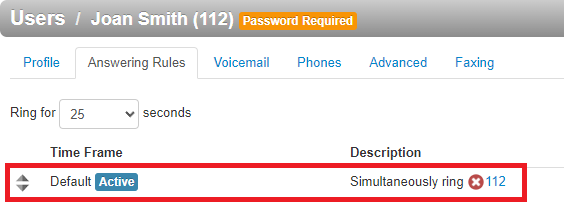
The Default answering rule acts as a “catch all” and stays active 24/7 unless there are answering rules above it that are active. Since this rule exists by default and is constantly active, it is usually used for routing After Hours calls, especially if there is a business hours answering rule that has been created.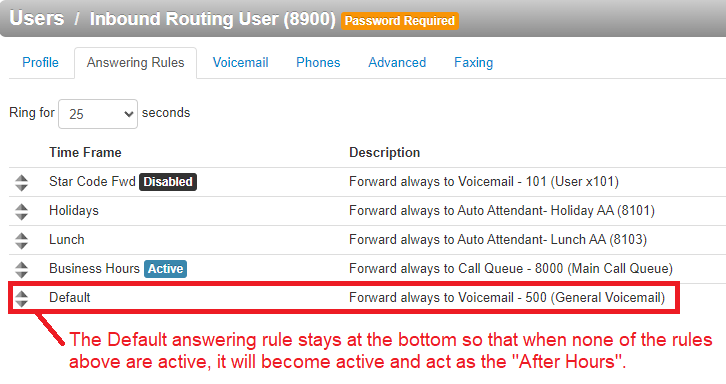
By clicking the Edit  icon next to the Default answering rule, you can adjust the destination for calls that are received while the Default answering rule is active.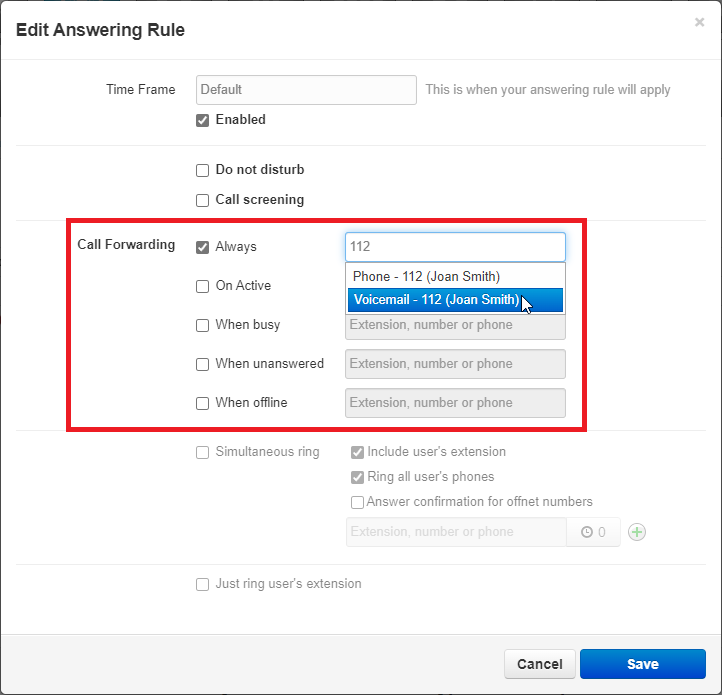
This can be useful to do when you have added more answering rules for things such as your business hours or lunch. 
To adjust the user's afterhours routing by editing the Default answering rule…
- Click the Edit icon next to the Default answering rule.

- In the Call Forwarding section, select Always.

- In the box, type the name, extension number, or phone number of the user or mailbox that after hours calls should forward to.

Quick Tip: If you need to send after hours calls directly to a voicemail, select the Voicemail option that appears.

- Click the Save button.
✔ The user should now have answering rules that route calls for their office hours and after hours (Default).
