CA French (Canada)
US English (US)

Contact Us

If you still have questions or prefer to get help directly from an agent, please submit a request.
We’ll get back to you as soon as possible.

Please fill out the contact form below using as much detail as possible so that our team can best assist you.

  • Home
  • Contact Us
  • Employee Log In
  • Getting Started
  • Using Your SpectrumVoIP Services
  • Working Remotely
  • Frequently Asked Questions
  • Troubleshooting
  • Training Resources
English (US)
CA French (Canada)
US English (US)
  • Home
  • Using Your SpectrumVoIP Services
  • The Stratus Platform
  • Apps and Chrome Extensions
  • StratusHUB Desktop App
  • StratusHUB Active Call Features

Park Calls with the StratusHUB Desktop App

Review how you can park and retrieve parked calls using the StratusHUB desktop app.

Written by Val Campos

Updated at September 8th, 2026

Contact Us

If you still have questions or prefer to get help directly from an agent, please submit a request. We’ll reach back to you via email as soon as possible.

Please fill out the contact form below using as much detail as possible so that our team can best assist you.

After clicking 'Submit Ticket' you wil receive an email confirmation that your ticket has reached a member of our support team. They will reply back to continue to supporting, or you can call in referencing the ticket number on the email. (469) 429-2500

  • Getting Started
    Policies Preparing to Use VoIP Services Billing Basics Register an SMS Campaign Connect Your Device Using Your Phones Web Portals
  • Using Your SpectrumVoIP Services
    Customer Announcements Basic Phone Use The Stratus Platform The Enswitch Platforms SMS Messaging Use Your Fax Service Manage Your Network Equipment
  • Working Remotely
    Relocate Your Phone Use Your Phone Remotely Stratus Working Remotely Enswitch Working Remotely
  • Frequently Asked Questions
    Getting Help Common Equipment and Feature Questions SMS Campaign Registry Billing and Accounting Questions LNP / Porting Telephone Numbers
  • Troubleshooting
    Common VoIP Issues and Solutions Fax Problems Phone Problems Share Your Screen
  • Training Resources
    Web Portal User Guides Phone Video Tutorials Phone Guides Fax Guides Stratus Mobile App Guides ES Mobile App Guides StratusHUB Guides ES Desktop App Guides
+ More

Table of Contents

The Park Tab Park an Active Call Retrieve a Parked Call

The Park Tab

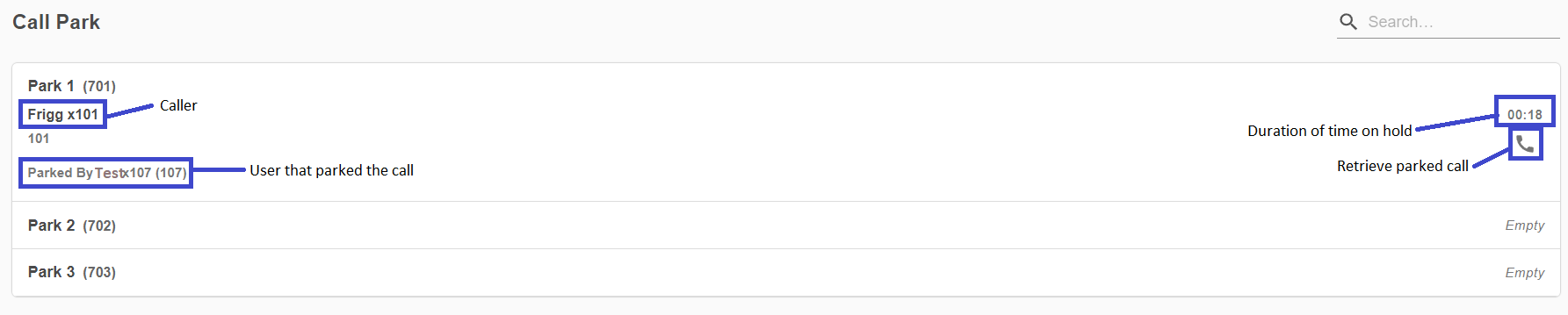
The Call Park tab of the StratusHUB desktop app allows you to see the status of your call park queues and view any calls that are currently parked.
Graphical user interface, application, Teams

Description automatically generated
The Call Park page of StratusHUB, which shows your account's call parks and any calls that are currently parked, along with the parked caller's Caller ID, the user that parked the call, how long they have been parked, and a button that can be clicked to retrieve the parked call.


Park an Active Call

When a caller is placed on hold, their call remains on your desktop app so that when you are ready to resume the call, you can do so from just your PC. 

As an alternative to placing a call on hold, you can park a call. Parking a call moves the call to a virtual “parking spot” or park queue so that the call is no longer taking up a line for calling on your softphone. When a call is parked, it waits on hold within a park queue listening to your music on hold. 

Static Parking

With the StratusHUB desktop app, you can use the Park tab

Diagram of a user dialing a park directly to have a call parked in a specific call park. The diagram shows how the call travels through the phone system from the user, to the park, and onwards to another user.

To park an active call in a specific park with static call parking…

1.  On an active call, click the Call Park button.

2. When prompted to select the method of parking to use, select Call Park.

3. On the Park tab, click the Park Call icon next to the call park that should hold the parked call.

✔ Once the Park Call icon is clicked, a confirmation message will appear on the bottom to the screen that restates the park queue you selected for the call to be transferred to. 

You should now be able to see that the call is parked, the caller's Caller ID information, and that you parked the call.

Now any other users can use the Park tab, a Park button for the park on a desk phone, or a phone to dial the park directly to retrieve this parked call. 


Dynamic Parking

With dynamic parking, the phone system picks where the caller will be parked for you. The system would pick the most available park queue. 

Diagram of a user dialing *** to have the system park a call. The diagram shows how the call travels through the phone system from the user, to the park, and onwards to another user.

This can be the most convenient way to park calls using the app since there are not readily available park buttons.

To use dynamic parking to park a call…

1. On an active call, click the Call Park button.

2. When prompted to select the method of parking to use, select Dynamic Park.

✔ Once Dynamic Park is clicked, the system will pick the next, most available park to transfer the call to. A confirmation message will appear on the bottom to the screen that states which park queue the call was transferred to. 

By default, Park 1, Park 2, and Park 3 will have the extension numbers of 701, 702, and 703 respectively. Additional parks may continue in this numerical naming scheme, such as 704 for Park 4. 

You should now be able to see that the call is parked, the caller's Caller ID information, and that you parked the call.

Now any other users can use the Park tab, a Park button for the park on a desk phone, or a phone to dial the park directly to retrieve this parked call.  


Retrieve a Parked Call

Once a call has been parked, you can review the parked call in the Park tab. Under a park, the parked call will be listed with the caller's Caller ID information and the name and extension number of the user that parked the call. 

Quick Tip: If you need to check why a call was parked, you can call the extension number of the user listed in the Parked By section.


To retrieve a parked call… 

  1. Click the Receive Call icon next to the parked call. 
  2. When the call rings to your desktop app, click the Accept button.
  3. Speak with the caller as needed.
stratushub desktop app park call call parking retrieve parked call pick up parked call park tab

Was this article helpful?

Yes
No
Give feedback about this article

Related Articles

  • Transfer Calls with the StratusHUB Desktop App
  • Park Calls with the StratusHUB Mobile App
  • Customer Stories
  • Hardware
  • Channel Partners
  • Pricing
  • Blog
  • Contact Us

Main Products

  • Business Phone Software
  • VoIP Features
  • VoIP Integrations
  • Stratus Managed Network
  • AI Business Surveillance
  • Internet

More Products

  • Stratus Web Portal
  • Stratus Fax
  • Emergency Lines
  • Business Texting
  • Business Cellular
  • Business Phone Hardware

Resources

  • About Us
  • FAQ
  • Careers
  • Support
  • Training
  • SpectrumVoIP Store

Connect

  • Facebook Fill 1 Created with Sketch.
  • Twitter Fill 1 Created with Sketch.
  • LinkedIn Group 2 Created with Sketch.
  • YouTube
  • Instagram
  • Pinterest

SpectrumVoIP Status

© SpectrumVoIP™ 2022. All Rights Reserved


Knowledge Base Software powered by Helpjuice

Main — (972) 312-0388 Sales — 866-506-3457 Support — (469) 429-2500 Terms of Service Privacy Policy
Expand